ID Tray
The ID Tray is an accessory for the Aila Interactive Kiosk that holds an ID-1 card (driver's license, health insurance card, credit card size) in a fixed position for imaging. This quickstart turns on card detection, captures an image automatically when a card is placed in the tray, and offers a manual capture button. Without kiosk hardware it shows a "hardware required" message.
Folder in the download: IDTray/. Scheme: IDTray.
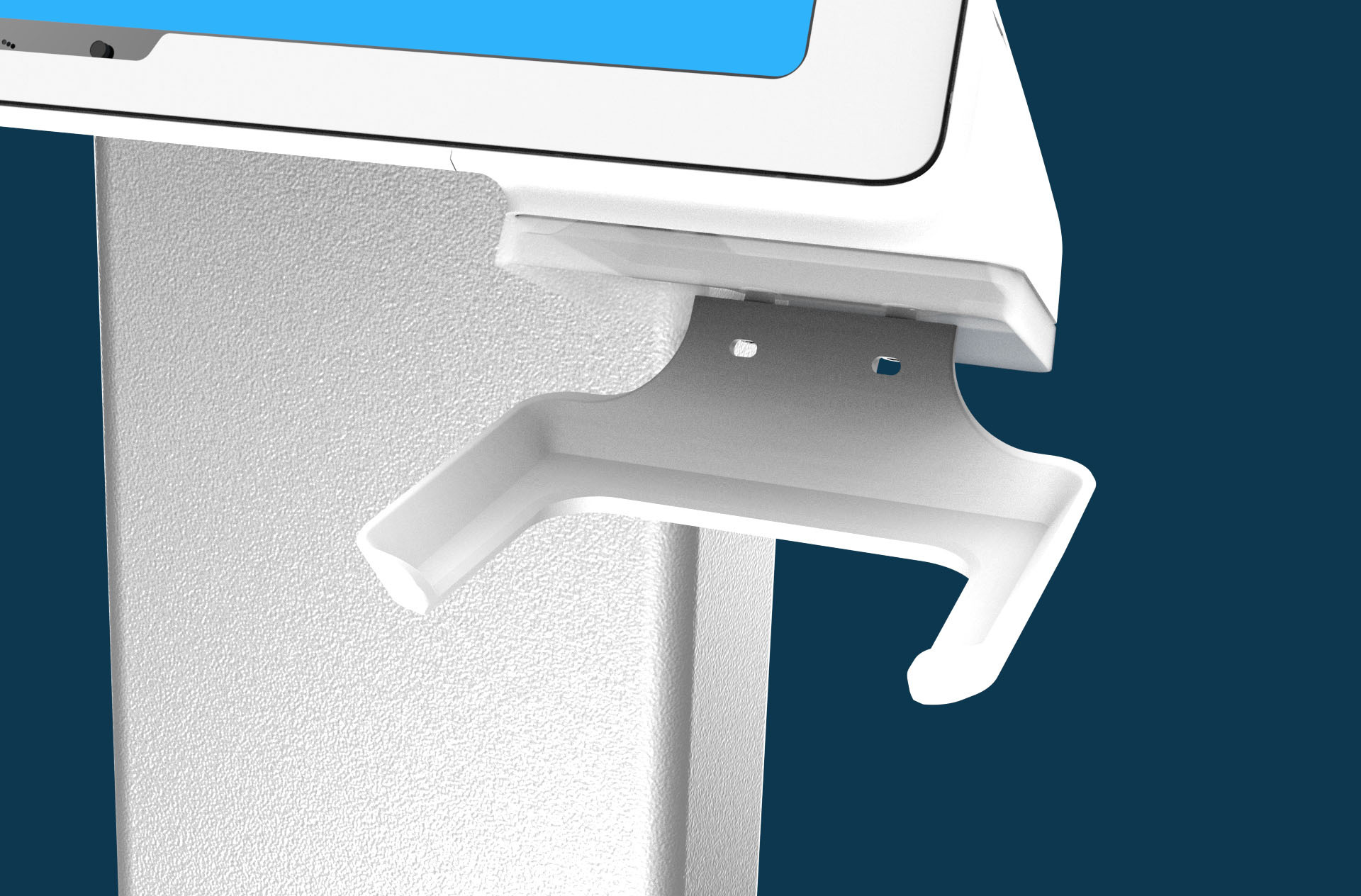
What you'll see
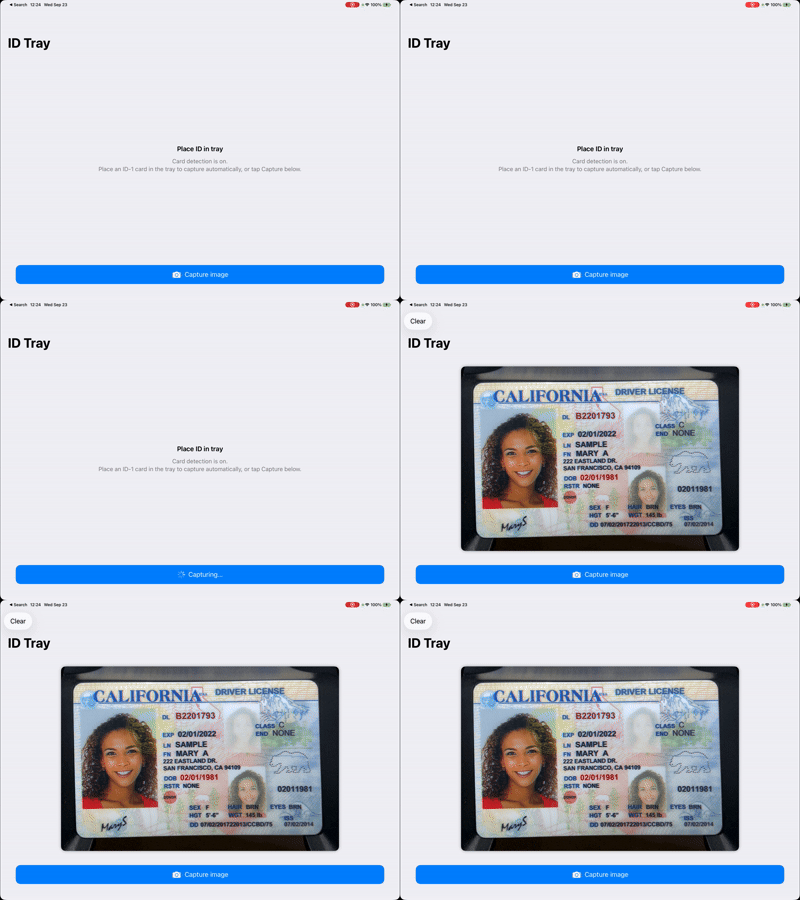
How it works
Detect hardware. Aila_GetHardwareClass() returns .none when no Aila hardware is connected. The view model checks it at start and again whenever AilaHardwareChanged fires, so plugging into or unplugging from a kiosk updates the UI live.
Turn on card detection. config.id1CardDetectionMode = .on makes the SDK watch the tray. When a card is placed, it posts AilaID1CardDetected through NotificationCenter. The quickstart observes it and calls captureImage().
Capture the image. Aila_ID1CaptureImage takes a completion handler with an optional UIImage and an optional Error. The handler may run off the main thread, so the result is pushed onto OperationQueue.main before touching published state. isCapturing guards against overlapping requests and drives the button's spinner.
Clean up. stopScanning() removes both observers before Aila_Stop().
import Foundation
import UIKit
import Aila

final class IDTrayViewModel: ObservableObject {
    @Published private(set) var isHardwareDetected = false
    @Published private(set) var capturedImage: UIImage?
    @Published private(set) var captureError: String?
    @Published private(set) var isCapturing = false

    private var config: AilaConfiguration
    private var cardDetectedObserver: NSObjectProtocol?
    private var hardwareChangedObserver: NSObjectProtocol?
    private let mainQueue = OperationQueue.main

    init() {
        config = AilaConfiguration()
        config.id1CardDetectionMode = .on
        config.beepVolume = .volume3
        config.setCode(.typePDF417, enabled: true)
        config.setCode(.type128, enabled: true)
        config.setCode(.typeQR, enabled: true)
    }

    func startScanning() {
        Aila_Init()
        Aila_SetConfiguration(config)
        Aila_Start()
        updateHardwareDetected()
        addCardDetectedObserver()
        addHardwareChangedObserver()
    }

    func stopScanning() {
        removeCardDetectedObserver()
        removeHardwareChangedObserver()
        Aila_Stop()
    }

    private func updateHardwareDetected() {
        mainQueue.addOperation { [weak self] in
            self?.isHardwareDetected = Aila_GetHardwareClass() != .none
        }
    }

    func captureImage() {
        guard !isCapturing else { return }
        isCapturing = true
        captureError = nil
        Aila_ID1CaptureImage { [weak self] image, error in
            self?.mainQueue.addOperation {
                guard let self else { return }
                self.isCapturing = false
                if let error {
                    self.captureError = error.localizedDescription
                    self.capturedImage = nil
                } else if let image {
                    self.capturedImage = image
                    self.captureError = nil
                }
            }
        }
    }

    func clearResult() {
        capturedImage = nil
        captureError = nil
    }

    private func addCardDetectedObserver() {
        removeCardDetectedObserver()
        cardDetectedObserver = NotificationCenter.default.addObserver(
            forName: .AilaID1CardDetected,
            object: nil,
            queue: mainQueue
        ) { [weak self] _ in
            self?.captureImage()
        }
    }

    private func removeCardDetectedObserver() {
        if let observer = cardDetectedObserver {
            NotificationCenter.default.removeObserver(observer)
            cardDetectedObserver = nil
        }
    }

    private func addHardwareChangedObserver() {
        removeHardwareChangedObserver()
        hardwareChangedObserver = NotificationCenter.default.addObserver(
            forName: .AilaHardwareChanged,
            object: nil,
            queue: mainQueue
        ) { [weak self] _ in
            self?.updateHardwareDetected()
        }
    }

    private func removeHardwareChangedObserver() {
        if let observer = hardwareChangedObserver {
            NotificationCenter.default.removeObserver(observer)
            hardwareChangedObserver = nil
        }
    }
}
The view has three states: hardware required, idle with instructions, and a captured image. The capture button appears whenever hardware is detected.
IDTray/View.swift
import SwiftUI

struct IDTrayView: View {
    @StateObject private var viewModel = IDTrayViewModel()

    var body: some View {
        NavigationStack {
            VStack(spacing: 20) {
                if !viewModel.isHardwareDetected {
                    hardwareRequiredView
                } else if let image = viewModel.capturedImage {
                    capturedImageView(image)
                } else {
                    idleView
                }
                if let error = viewModel.captureError {
                    Text(error)
                        .font(.caption)
                        .foregroundStyle(.red)
                        .multilineTextAlignment(.center)
                        .padding(.horizontal)
                }
                if viewModel.isHardwareDetected {
                    captureButton
                }
            }
            .padding()
            .frame(maxWidth: .infinity, maxHeight: .infinity)
            .background(Color(.systemGroupedBackground))
            .navigationTitle("ID Tray")
            .toolbar {
                if viewModel.capturedImage != nil || viewModel.captureError != nil {
                    ToolbarItem(placement: .cancellationAction) {
                        Button("Clear") {
                            viewModel.clearResult()
                        }
                    }
                }
            }
            .onAppear {
                viewModel.startScanning()
            }
            .onDisappear {
                viewModel.stopScanning()
            }
        }
    }

    private var hardwareRequiredView: some View {
        VStack(spacing: 12) {
            Text("ID Tray required")
                .font(.headline)
            Text("Requires ID Tray accessory on an Aila Interactive Kiosk.\nConnect kiosk hardware to enable card detection and capture.")
                .font(.subheadline)
                .foregroundStyle(.secondary)
                .multilineTextAlignment(.center)
                .padding(.horizontal, 24)
        }
        .frame(maxWidth: .infinity, maxHeight: .infinity)
    }

    private var idleView: some View {
        VStack(spacing: 12) {
            Text("Place ID in tray")
                .font(.headline)
            Text("Card detection is on.\nPlace an ID-1 card in the tray to capture automatically, or tap Capture below.")
                .font(.subheadline)
                .foregroundStyle(.secondary)
                .multilineTextAlignment(.center)
                .padding(.horizontal, 24)
        }
        .frame(maxWidth: .infinity, maxHeight: .infinity)
    }

    private func capturedImageView(_ image: UIImage) -> some View {
        Image(uiImage: image)
            .resizable()
            .scaledToFit()
            .cornerRadius(12)
            .shadow(radius: 4)
            .padding()
    }

    private var captureButton: some View {
        Button {
            viewModel.captureImage()
        } label: {
            HStack {
                if viewModel.isCapturing {
                    ProgressView()
                        .tint(.white)
                } else {
                    Image(systemName: "camera.fill")
                }
                Text(viewModel.isCapturing ? "Capturing…" : "Capture image")
            }
            .frame(maxWidth: .infinity)
            .padding(.vertical, 14)
            .background(Color.accentColor)
            .foregroundStyle(.white)
            .clipShape(RoundedRectangle(cornerRadius: 12, style: .continuous))
        }
        .disabled(viewModel.isCapturing)
        .padding(.horizontal, 24)
    }
}
Barcode symbologies are still enabled in this quickstart, so scanning the PDF417 on the back of a license through the tray also produces a scanCallback result if you add one. Combine this with Driver's License Parsing to capture the image and the parsed data in one step.
Try changing
- Save the captured
UIImageto the Photos library or upload it. - Add a
scanCallbackand show any barcode read from the card next to the image. - Disable automatic capture and require the button press.
API used
- Aila_ID1CaptureImage
- Aila_GetHardwareClass
- AilaConfiguration for
id1CardDetectionMode - Notifications for
AilaID1CardDetectedandAilaHardwareChanged
Next: inspect hardware and SDK state with Diagnostics.
Want the code? The full Xcode project is available as a zip on the Quickstarts overview.